Fastfetch
Fastfetchの使用方法メモ
実行環境の詳細
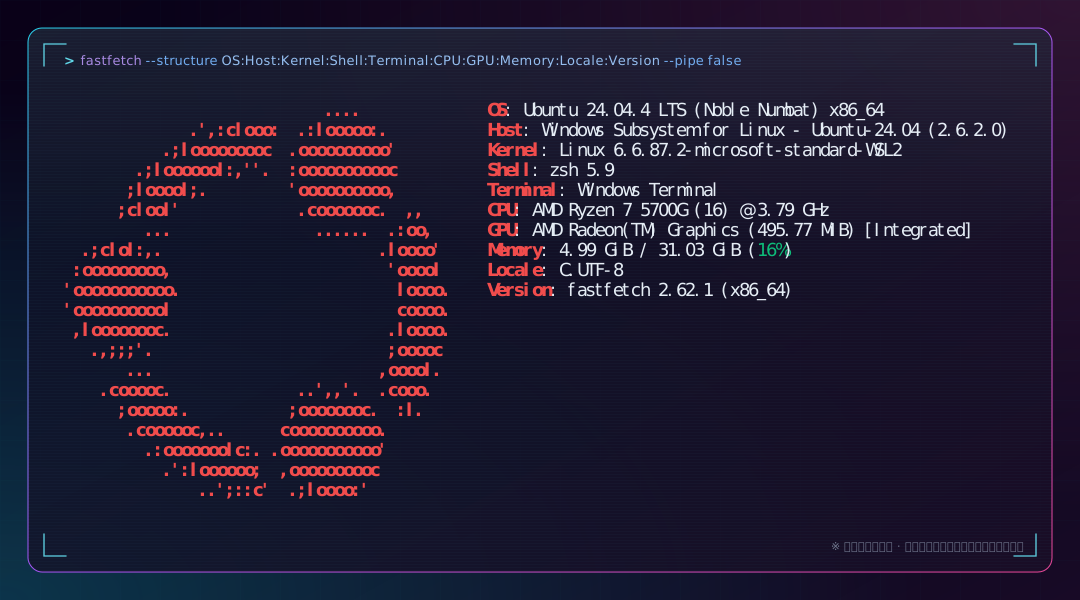
- OS
- Ubuntu 24.04.4 LTS
- Platform
- WSL2
- Host
- Windows Subsystem for Linux - Ubuntu-24.04 (2.6.2.0)
- Kernel
- Linux 6.6.87.2-microsoft-standard-WSL2
- Shell
- zsh 5.9
- Terminal
- Windows Terminal
- CPU
- AMD Ryzen 7 5700G
- GPU
- AMD Radeon(TM) Graphics [Integrated]
- Memory
- 31.03 GiB
- Arch
- x86_64 / amd64
- Locale
- C.UTF-8
- fastfetch
- 2.62.1
参考
インストール
curl -L -o /tmp/fastfetch.deb https://github.com/fastfetch-cli/fastfetch/releases/download/2.62.1/fastfetch-linux-amd64.deb
sudo apt install /tmp/fastfetch.deb
rm /tmp/fastfetch.deb
curl -L -o /tmp/fastfetch.deb https://github.com/fastfetch-cli/fastfetch/releases/download/2.62.1/fastfetch-linux-aarch64.deb
sudo apt install /tmp/fastfetch.deb
rm /tmp/fastfetch.debfastfetch --version
# fastfetch 2.62.1 (x86_64)実行
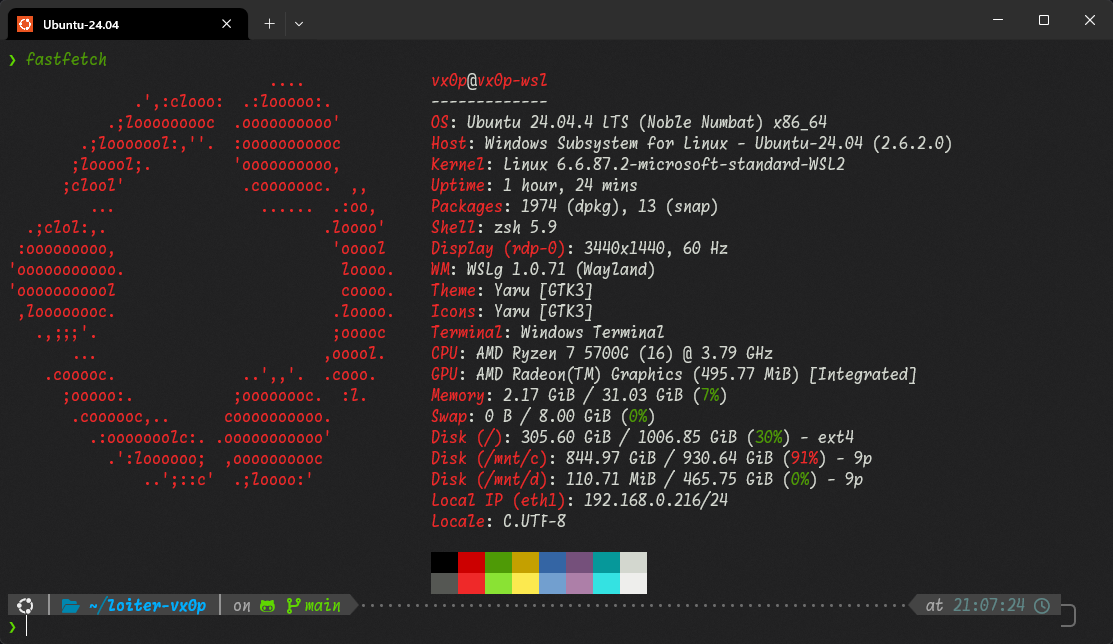
fastfetchWSL2 Ubuntu + Windows Terminalで実行すると以下のような出力になります。
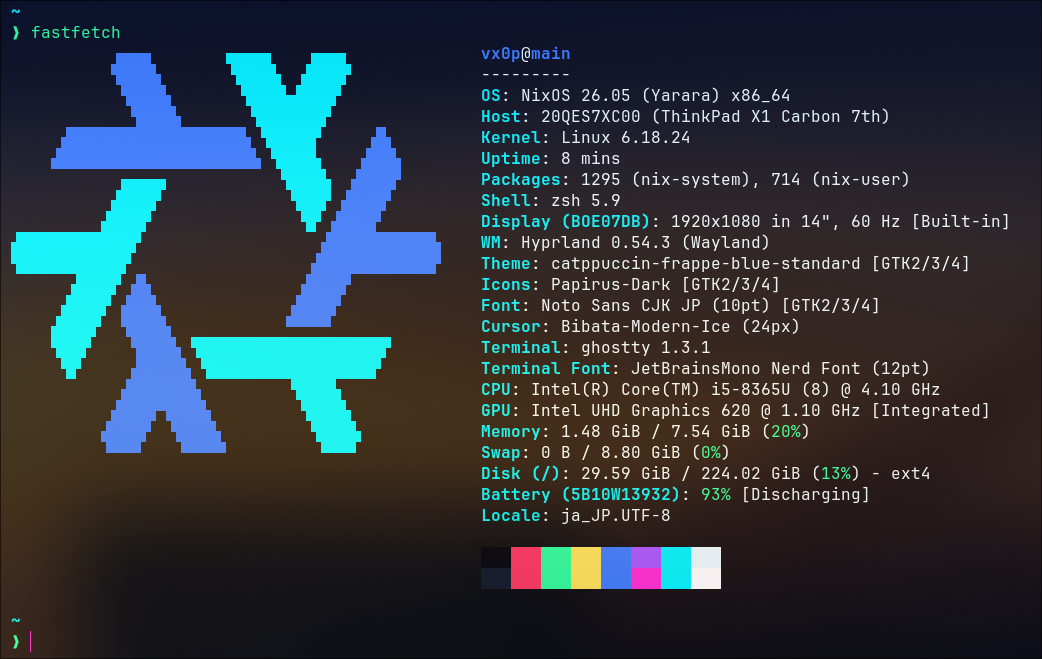
NixOS + Ghosttyで実行すると以下のような出力になります。
表示する内容はカスタマイズできます。
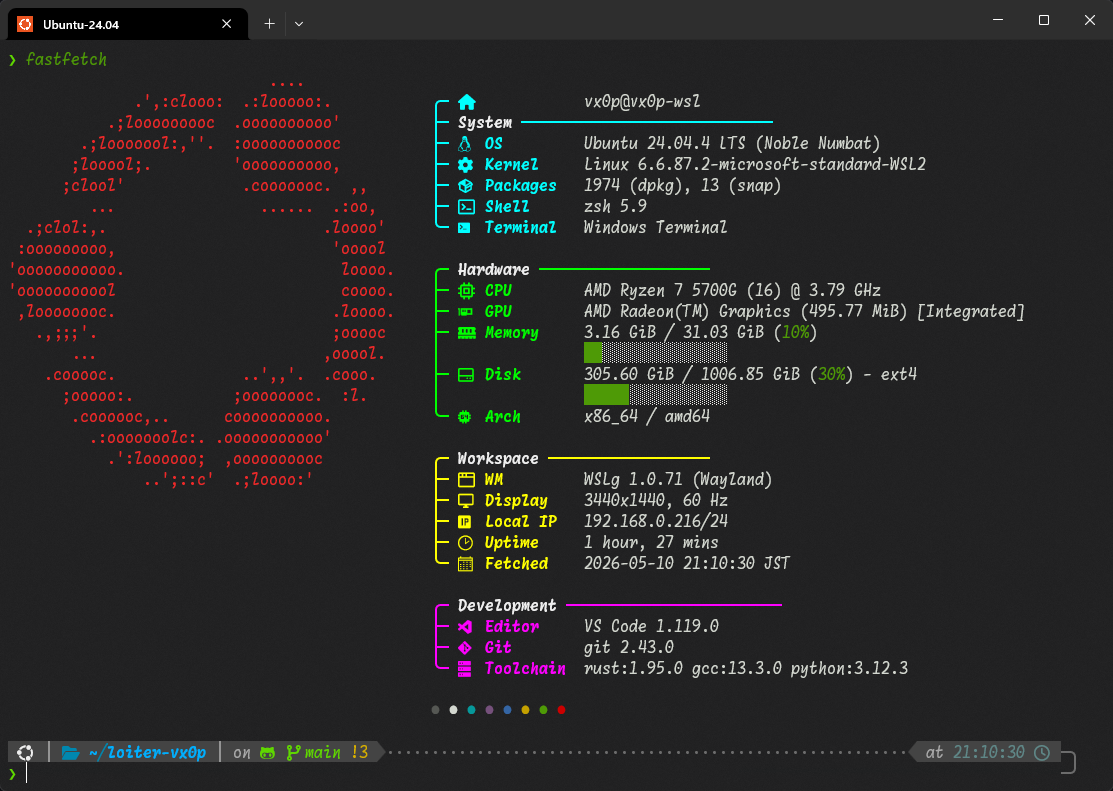
FASTFETCH_PROFILE=v0 sh -c "$(curl -fsSL https://loiter.vx0p.dev/sh/fastfetch)"

# または

curl -fsSL "https://loiter.vx0p.dev/cfg/fastfetch/v0.jsonc" -o /tmp/v0.jsonc
fastfetch --config /tmp/v0.jsonc
VS Codeのバージョン取得が遅いので、気になる方は削除してください。
Developmentを丸ごと削除したバージョン: FASTFETCH_PROFILE=v0_light sh -c "$(curl -fsSL https://loiter.vx0p.dev/sh/fastfetch)"
以下は設定ファイル(v0)の内容です。
{
"$schema": "https://github.com/fastfetch-cli/fastfetch/raw/master/doc/json_schema.json",
"display": {
"separator": "",
"key": {
"type": "string",
"width": 18
},
"bar": {
"border": null,
"char": {
"elapsed": "█",
"total": "░"
},
"width": 16
}
},
"modules": [
"break",
{
"type": "title",
"key": "{#@51}╭─ {icon} ",
"format": "{user-name}@{host-name}"
},
{
"type": "custom",
"key": "{#@51}├─{#@255} System {#@51}────────────────────────────"
},
{
"type": "os",
"key": "{#@51}├─ {icon} OS",
"format": "{pretty-name}"
},
{
"type": "kernel",
"key": "{#@51}├─ {icon} Kernel"
},
{
"type": "packages",
"key": "{#@51}├─ {icon} Packages"
},
{
"type": "shell",
"key": "{#@51}├─ {icon} Shell"
},
{
"type": "terminal",
"key": "{#@51}╰─ {icon} Terminal"
},
"break",
{
"type": "custom",
"key": "{#@46}╭─{#@255} Hardware {#@46}───────────────────"
},
{
"type": "cpu",
"key": "{#@46}├─ {icon} CPU"
},
{
"type": "gpu",
"key": "{#@46}├─ {icon} GPU"
},
{
"type": "memory",
"key": "{#@46}├─ {icon} Memory"
},
{
"type": "memory",
"key": "{#@46}│",
"percent": {
"type": ["bar", "hide-others"]
}
},
{
"type": "disk",
"folders": "/",
"key": "{#@46}├─ {icon} Disk"
},
{
"type": "disk",
"folders": "/",
"key": "{#@46}│",
"percent": {
"type": ["bar", "hide-others"]
}
},
{
"type": "command",
"keyIcon": "",
"key": "{#@46}╰─ {icon} Arch",
"text": "printf '%s / %s' \"$(uname -m)\" \"$(dpkg --print-architecture 2>/dev/null || echo n/a)\""
},
"break",
{
"type": "custom",
"key": "{#@226}╭─{#@255} Workspace {#@226}──────────────────"
},
{
"type": "wm",
"key": "{#@226}├─ {icon} WM"
},
{
"type": "display",
"key": "{#@226}├─ {icon} Display"
},
{
"type": "localip",
"key": "{#@226}├─ {icon} Local IP"
},
{
"type": "uptime",
"key": "{#@226}├─ {icon} Uptime"
},
{
"type": "datetime",
"key": "{#@226}╰─ {icon} Fetched",
"format": "{year}-{month-pretty}-{day-pretty} {hour-pretty}:{minute-pretty}:{second-pretty} {timezone-name}"
},
"break",
{
"type": "custom",
"key": "{#@201}╭─{#@255} Development {#@201}────────────────────────"
},
{
"type": "command",
"keyIcon": "",
"key": "{#@201}├─ {icon} Editor",
"text": "code --version 2>/dev/null | head -n1 | sed 's/^/VS Code /' || ${VISUAL:-${EDITOR:-echo n/a}} --version 2>/dev/null | head -n1 || echo n/a"
},
{
"type": "command",
"keyIcon": "",
"key": "{#@201}├─ {icon} Git",
"text": "git --version 2>/dev/null | sed 's/^git version /git /' || echo n/a"
},
{
"type": "command",
"keyIcon": "",
"key": "{#@201}╰─ {icon} Toolchain",
"text": "rust=$(rustc --version 2>/dev/null | awk '{print $2}' || echo n/a); gcc=$(gcc -dumpfullversion -dumpversion 2>/dev/null || echo n/a); python=$(python3 --version 2>/dev/null | awk '{print $2}' || echo n/a); printf 'rust:%s gcc:%s python:%s' \"$rust\" \"$gcc\" \"$python\""
},
"break",
{
"type": "colors",
"symbol": "circle"
},
"break"
]
}
アイコンを使っているのでNerd Fontsが必要です(画像はMoralerspace Radon HW)。
表示する項目を指定
fastfetch --structure title:separator:os:kernel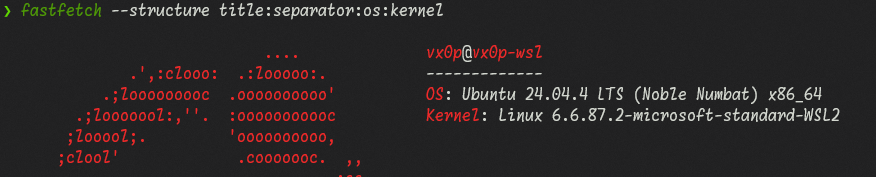
デフォルトで表示される項目を確認
fastfetch --print-structure表示できる項目を確認
fastfetch --list-modulesなお、ここにない項目でも、設定ファイルでコマンドを定義しておけばその結果を表示することが可能です。
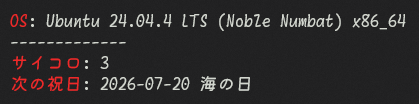
{
  "$schema": "https://github.com/fastfetch-cli/fastfetch/raw/master/doc/json_schema.json",
  "modules": [
    "os",
    "separator",
    {
      "type": "command",
      "key": "サイコロ",
      "text": "bash -c 'echo $((RANDOM % 6 + 1))'"
    },
    {
      "type": "command",
      "key": "次の祝日",
      "text": "curl -fsSL https://www8.cao.go.jp/chosei/shukujitsu/syukujitsu.csv | iconv -f SHIFT_JIS -t UTF-8 | python3 -c 'import sys,csv,datetime as d;today=d.date.today();print(next(f\"{x:%Y-%m-%d} {n}\" for s,n in list(csv.reader(sys.stdin))[1:] if (x:=d.datetime.strptime(s,\"%Y/%m/%d\").date())>today))'"
    }
  ]
}
6月は祝日がない...
表示できるロゴを確認
fastfetch --list-logos
fastfetch --print-logos

# ロゴを指定
fastfetch --logo "Windows 11"
プリセット
fastfetch --list-presets

# Public IPv4の取得には ipinfo.io が使用されているみたい
fastfetch --config examples/26.jsonc
fastfetch -c all個人的に好きなのは、fastfetch --config examples/14、fastfetch --config examples/26あたりです。ガチ勢はfastfetch --config examples/31あたりをさらに魔改造する感じでしょうか。
プリセットの設定ファイル(.jsonc)は、https://github.com/fastfetch-cli/fastfetch/tree/dev/presets、ローカルなら/usr/share/fastfetch/presetsで確認できるはずです。
設定ファイル
fastfetch --gen-config~/.config/fastfetch/config.jsoncが生成されます。fastfetchを実行すると、このパスに配置したものが使用されますが、このパス以外に配置した設定ファイルはfastfetch --config /path/to/config.jsoncのようにして指定します。
fastfetch --list-config-pathsで確認できるように、/etc/fastfetch/config.jsoncに設定ファイルを配置してもOKです。
プリセットの設定ファイルとその出力を比較して、設定ファイルを作り上げるのが効率的かと思います。
ロゴを変更
https://github.com/fastfetch-cli/fastfetch/wiki/Logo-options
ロゴを変更 - imgcat
用意した画像をimgcat(https://github.com/danielgatis/imgcat#installation)で表示します。
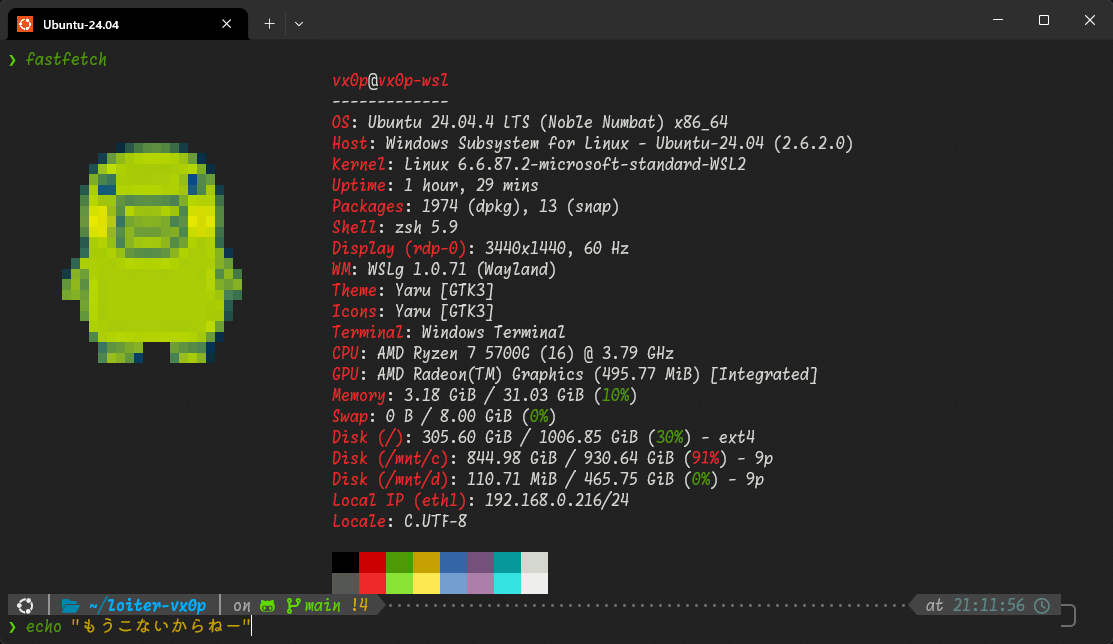
sudo snap install imgcat

mkdir -p ~/.config/fastfetch/assets
curl -o ~/.config/fastfetch/assets/くちぱっち_書き出し正方形.png -L https://tamagotchi-official.com/tamagotchi/jp/character/2023/06/03/Grs0icuCW5ffxTAh/%E3%81%8F%E3%81%A1%E3%81%B1%E3%81%A3%E3%81%A1_%E6%9B%B8%E3%81%8D%E5%87%BA%E3%81%97%E6%AD%A3%E6%96%B9%E5%BD%A2.pngロゴを変更 - chafa
chafa(https://github.com/hpjansson/chafa#installing)を使うと高画質で表示できます。
ずんだもん: https://www.pixiv.net/artworks/92641351
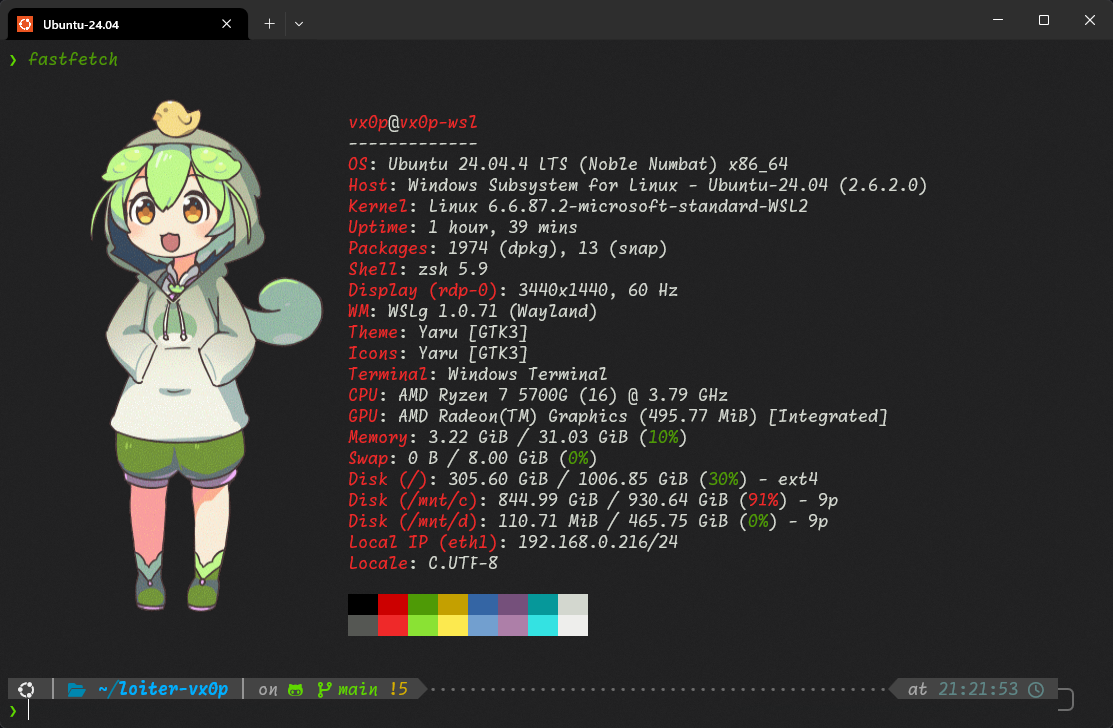
私の環境では、aptでインストールしたchafaはバージョンが古く背景を透明にできなかったので、バイナリをダウンロードしています。
# chafa
curl -OL https://hpjansson.org/chafa/releases/static/chafa-1.18.2-1-x86_64-linux-gnu.tar.gz
tar xzf chafa-1.18.2-1-x86_64-linux-gnu.tar.gz
sudo mv chafa-1.18.2-1-x86_64-linux-gnu/chafa /usr/local/bin
rm -rf chafa-1.18.2-1-x86_64-linux-gnu*

mkdir -p ~/.config/fastfetch/assets
chafa -f sixels XXX.png > ~/.config/fastfetch/assets/image.sixel以下は文字を画像にして表示する例です。
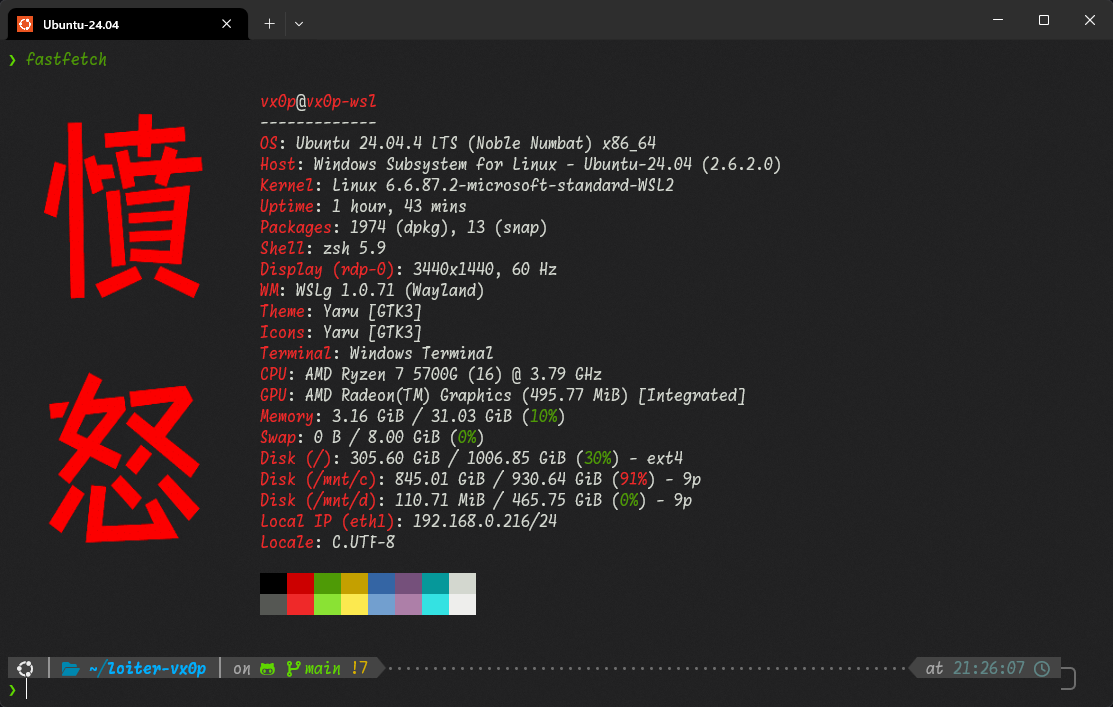
font、labelは適宜置き換えてください。
# imagemagick
sudo apt install imagemagick

mkdir -p ~/.config/fastfetch/assets

convert -background none \
  -fill "#f00" \
  -font "$HOME/.fonts/MoralerspaceHW_v2.0.0/MoralerspaceKryptonHW-Regular.ttf" \
  -pointsize 200 \
  -gravity center \
  -size 256x512 \
  label:"憤\n怒" \
  ~/.config/fastfetch/assets/image.png
chafa -f sixels ~/.config/fastfetch/assets/image.png > ~/.config/fastfetch/assets/image.sixelロゴを変更 - WezTerm
WezTerm: https://wezterm.org/index.html
WezTermはGIFを表示できます。
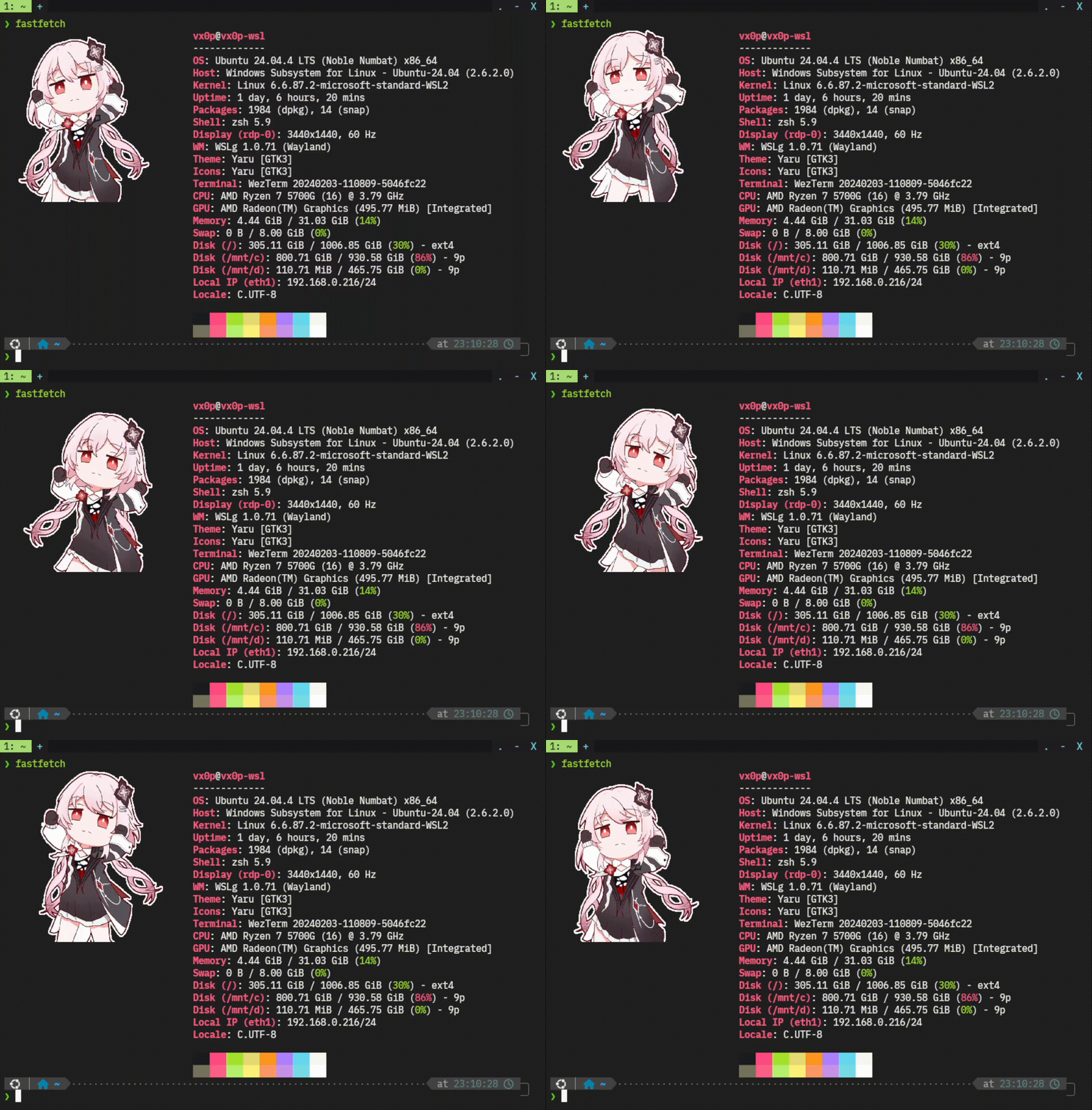
アンインストール
削除
sudo apt purge fastfetch

rm -rf ~/.config/fastfetch/
rm -rf ~/fastfetch/
sudo rm -rf /etc/xdg/fastfetch/
sudo rm -rf /etc/fastfetch/